


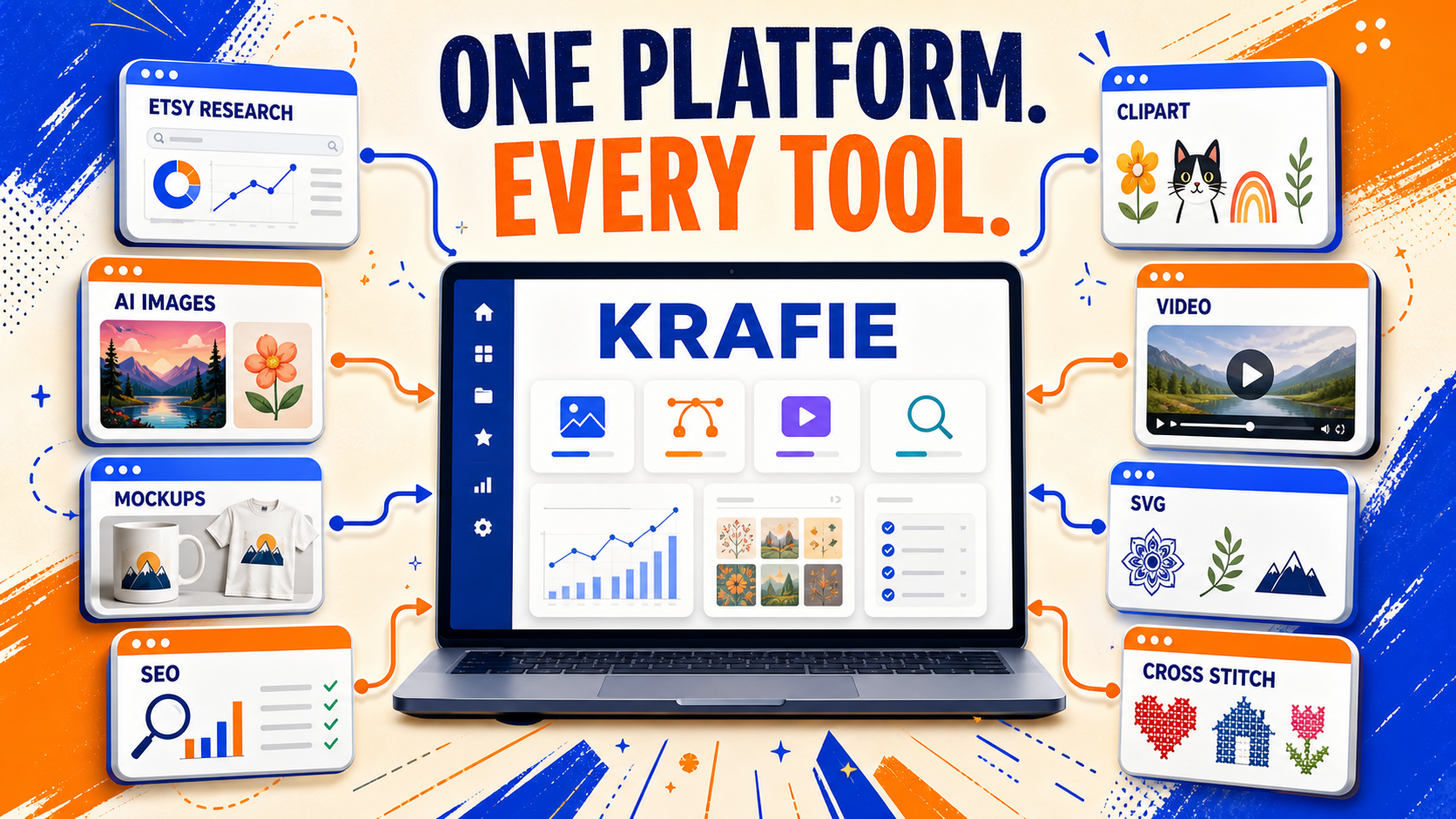
Creating digital products often means moving between tools for artwork, editing, mockups, and exports.
Krafie brings those creative tools together, with product research and listing preparation available when you are ready to explore selling your work.
That gets expensive fast.
This is exactly why Krafie was built: to give digital product creators one AI studio where they can create, edit, research, and prepare files for the places they sell.
In this guide, I’ll walk you through how to use Krafie to create artwork, clipart bundles, cross stitch patterns, SVG files, mockups, and other digital products for your shop or chosen marketplace.
What Is Krafie?
Krafie is an all-in-one AI creative studio for digital products. Create in Krafie, then export your files and prepare them for the places you sell. Publishing and checkout happen through your chosen sales channel.
Inside Krafie, you can generate:
- AI images
- clipart
- t-shirt designs
- wall art
- mockups
- cross stitch patterns
- SVG files
- PDF files
- AI videos
- digital binder page backgrounds
You also get access to Product Research, SEO tools, image editing tools, background removal, upscaling, and automation features through MCP connections.
The idea is simple: instead of paying for five or six separate subscriptions, you can keep your digital product workflow in one place.
The Krafie Dashboard
When you log into Krafie, the main dashboard gives you access to all the apps in one place.
Krafie includes tools like:
- Product Research
- AI Image Generator
- Image Editor
- Listing Optimizer
- Background Removal
- Image Upscaler
- SVG Studio
- Cross Stitch Generator
- Mockup Generator
- Clipart Generator
- Video Studio
- MCP connection tools
- History tab
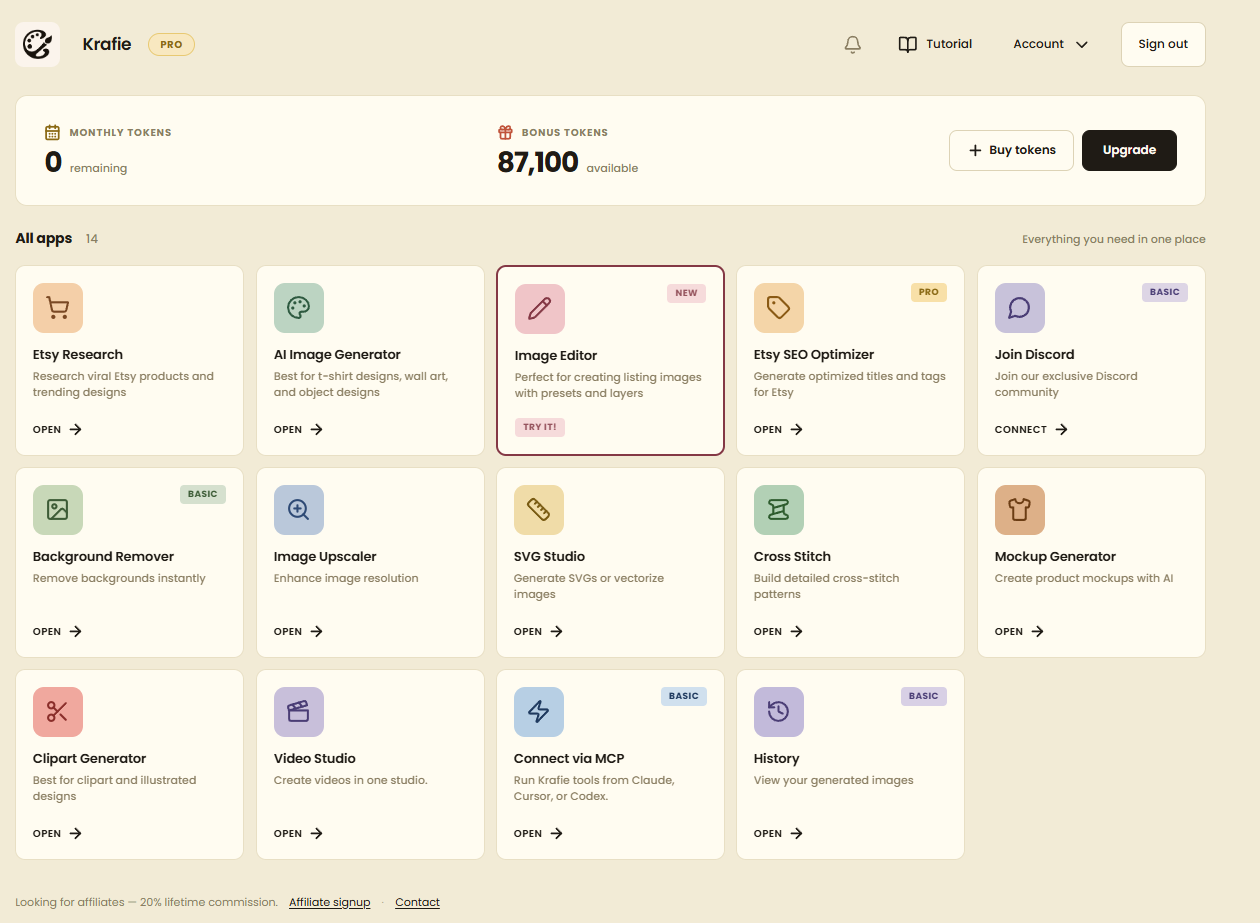
The dashboard also includes your account section, billing options, notifications, tutorials, and token balance.
Understanding Krafie Tokens
Krafie uses tokens to generate images, videos, cross stitch patterns, SVGs, and other outputs.
There are two main types of tokens:
- Monthly tokens — these come with your subscription and are usually the best value.
- Bonus or purchased tokens — these are extra tokens you can buy if you run out.
The best strategy is to use your monthly tokens first. Purchased tokens are more of a backup option if you need extra generations before your next monthly reset.
You can see Krafie’s current subscription plans on the Krafie pricing page.
Step 1: Explore Product Ideas With Product Research
The first step in creating digital products is research.
The Krafie Product Research tool organizes observed listing activity from Etsy. Listing source: Etsy. Sales figures are estimates, not verified transactions, and the dataset does not represent every marketplace. It looks for signals like:
- bestseller listings
- popular now listings
- listings with strong estimated recent sales
- listings getting a lot of favorites
- new listings gaining traction fast
This is important because you do not want to generate random products. You want to create products based on real market demand.
Inside the Product Research app, you can browse viral listings, switch between card view and table view, filter by category, sort by sales, search by shop name, and find new opportunities before they become saturated.
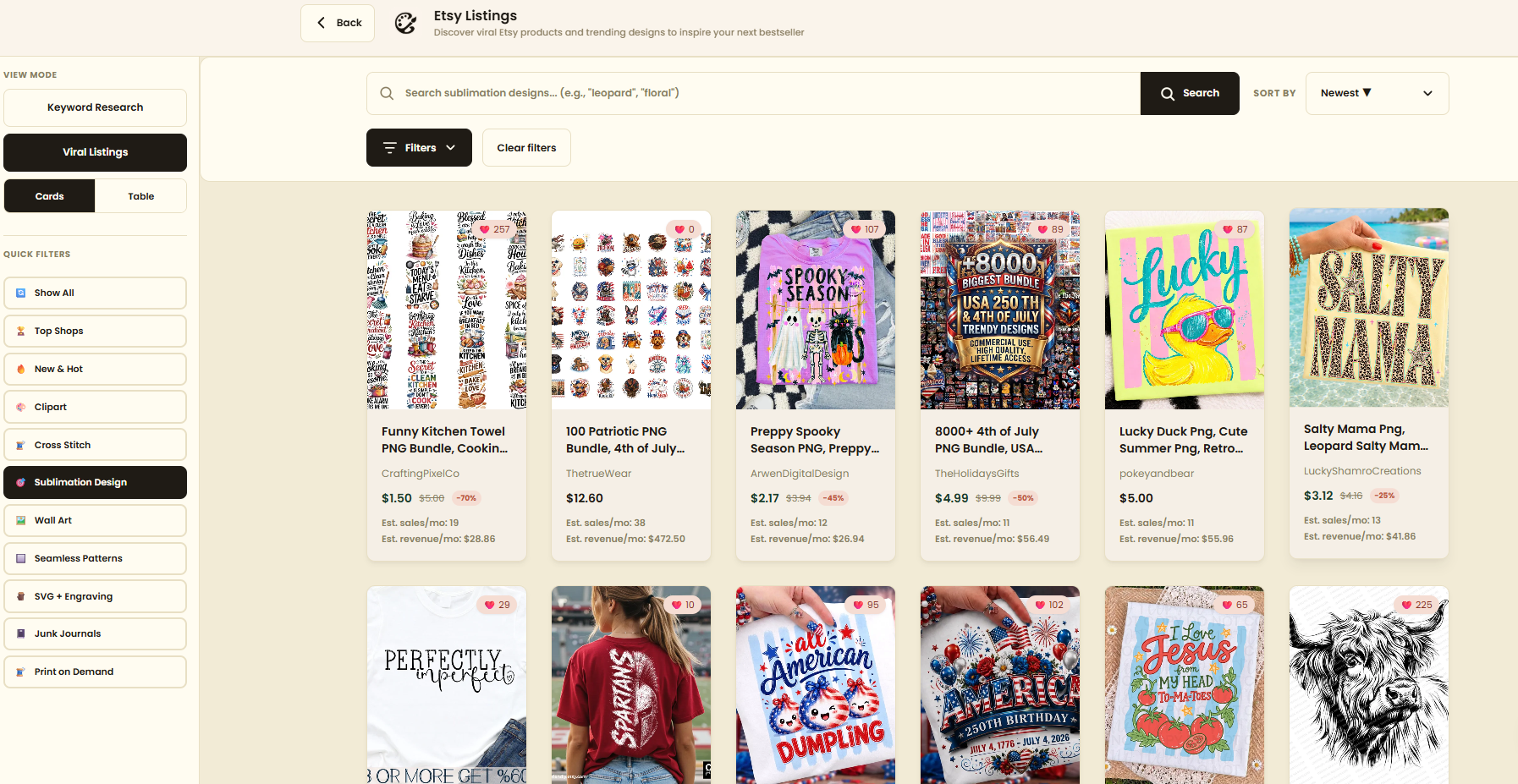
Use the “New and Hot” Filter
One of the most useful filters is New and Hot.
This shows listings that recently launched or were recently spotted by the algorithm and are already getting traction.
That is powerful because you can spot trends early instead of copying something after everyone else has already jumped on it.
Use the Top Shops Filter
You can also use the Top Shops filter to see which Etsy shops currently have multiple listings getting traction.
This is useful because if a shop has many winning listings, you can study their style, product type, pricing, and niche direction.
Step 2: Generate Images With AI
Once you find a product idea, you can move into the AI Image Generator.
Krafie includes access to major AI image models such as Nano Banana, Nano Banana Pro, OpenAI, Flux, Seedream, and more.
You can use the AI Image Generator to create:
- t-shirt designs
- clipart
- wall art
- mockup images
- YouTube thumbnails
- avatars
- print-on-demand graphics
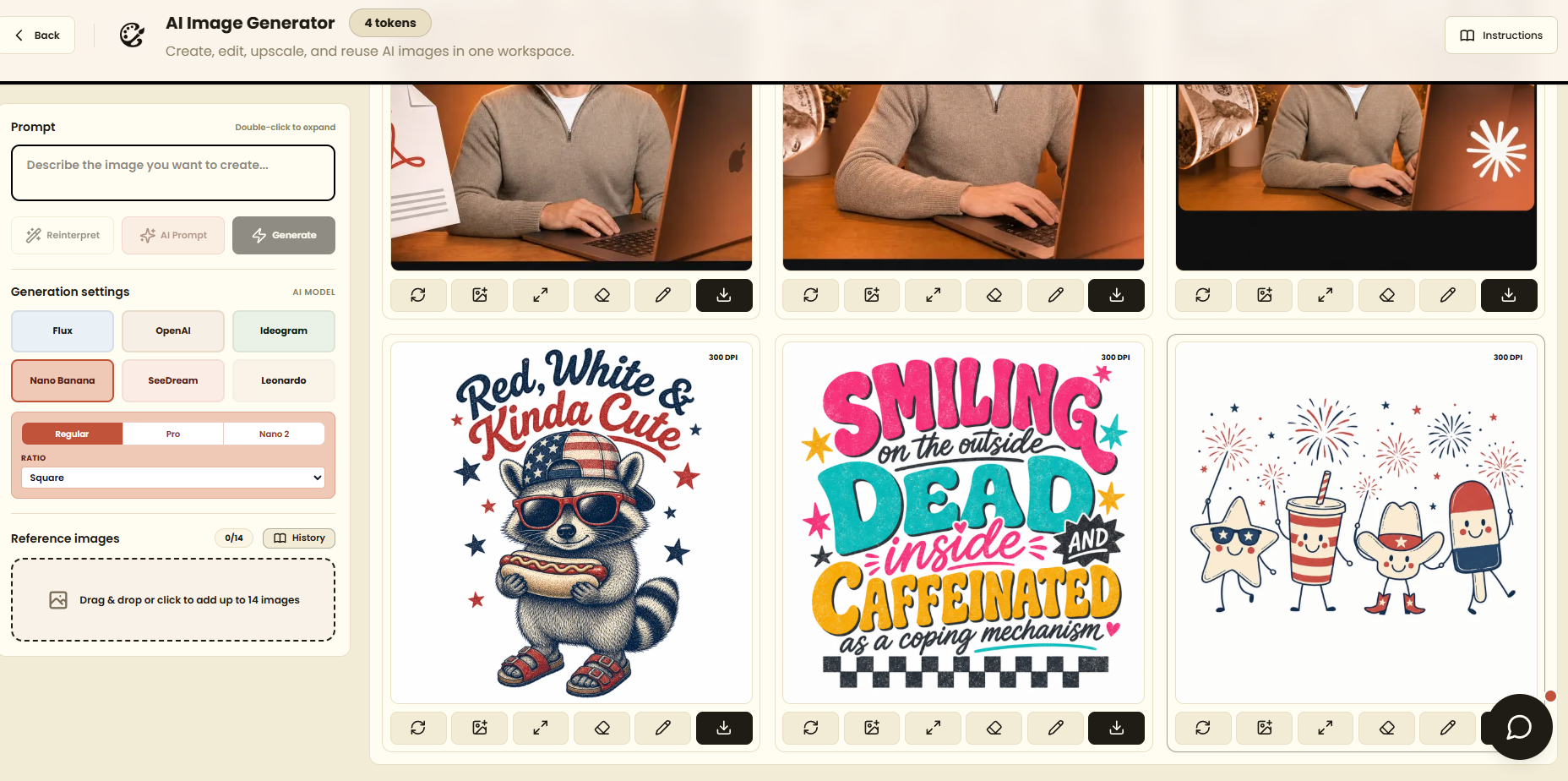
To generate a basic image, you simply choose your model, type a prompt, select your settings, and click generate.
For example, you could type:
green dog in a cute cartoon style
Then Krafie generates the image and automatically saves it in your history.
Step 3: Edit Images Inside Krafie
After generating an image, you can edit it directly inside the Krafie Image Editor.
You can:
- change specific parts of the image
- pinpoint an area and edit only that area
- highlight objects you want changed
- change colors
- remove backgrounds
- upscale the image
- download the final file
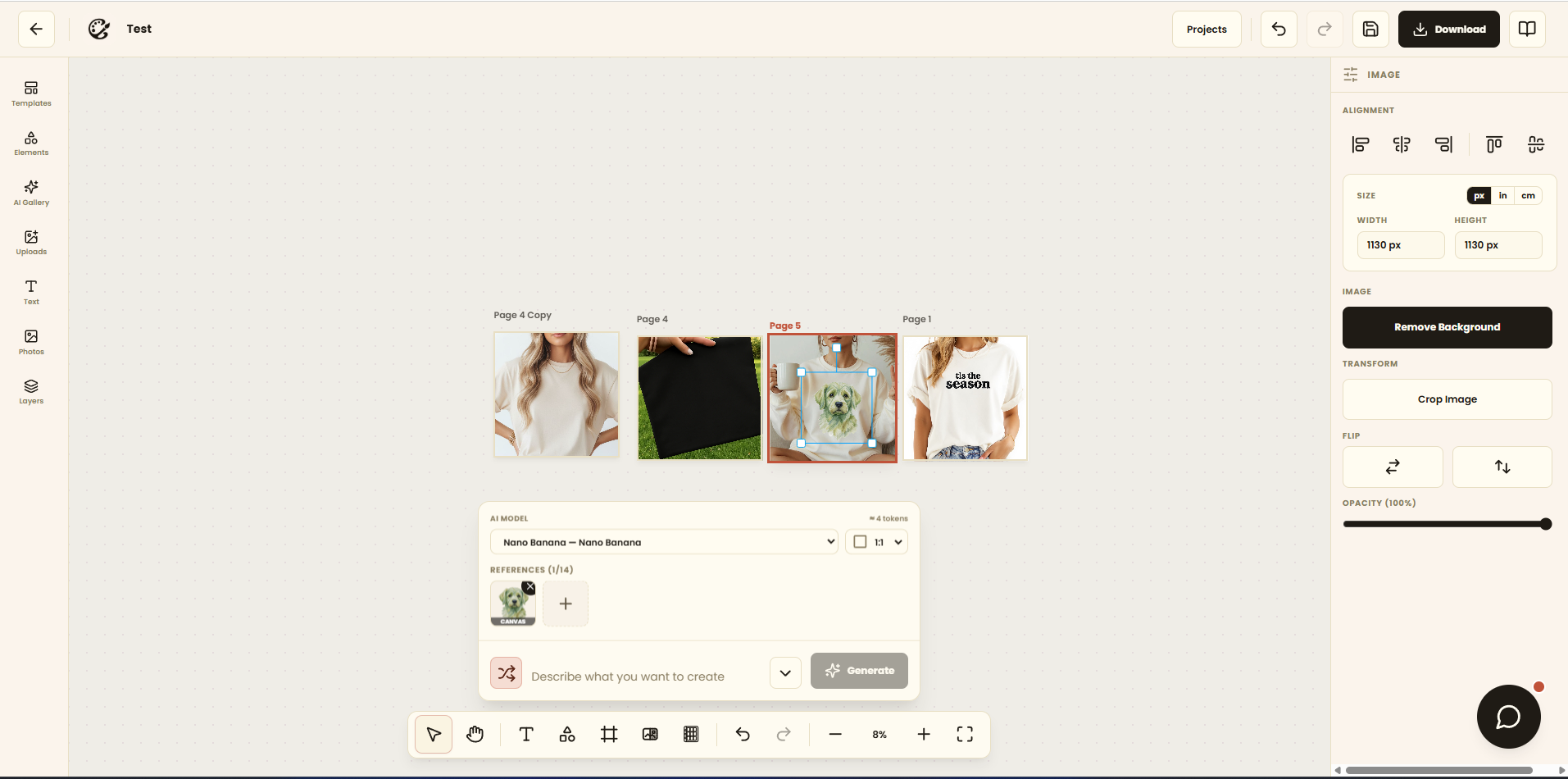
For example, if you generate a green dog and want it to be yellow, you can either tell the AI “make the dog yellow” or highlight the dog and apply the edit.
This makes the workflow much faster because you do not have to jump into Photoshop for every small change.
Step 4: Develop Original Designs With Reference Images
One of the strongest Krafie workflows is using reference images.
Start with a reference image you own or have permission to use, or study broader product themes to develop a distinct concept.
Inside Krafie, you can crop the design from the Product Research app and use it as a reference image.
Then you can use tools like:
- Reinterpret — creates something similar but different
- Get Variations — generates multiple versions in a similar style
- Get AI Prompt — analyzes the reference and gives you a reusable prompt
This helps digital product creators explore a visual direction and develop original product ideas.
Step 5: Use the Image Editor for Product Layouts
Krafie also includes a web-based Image Editor.
If you have used Canva-style editors before, this will feel familiar. You can create artboards, add text, upload images, use templates, arrange layers, crop, resize, change backgrounds, export files, and build mockup-style listing images.
The Image Editor is useful for:
- product listing images
- digital product previews
- social media posts
- t-shirt mockup layouts
- clipart bundle previews
- printable PDF layouts
You can also use your AI history inside the editor, which means anything you generated in Krafie can be dragged directly onto your artboard.
Step 6: Create Product Mockups
Mockups are important because customers want to see what the product looks like in real life.
If you are selling t-shirt designs, sweatshirt designs, wall art, or print-on-demand graphics, a good mockup can make your listing look much more professional.
Inside the Krafie Mockup Generator, you can upload a design or select one from your history, pick a mockup template, choose the product color, and generate a finished mockup.
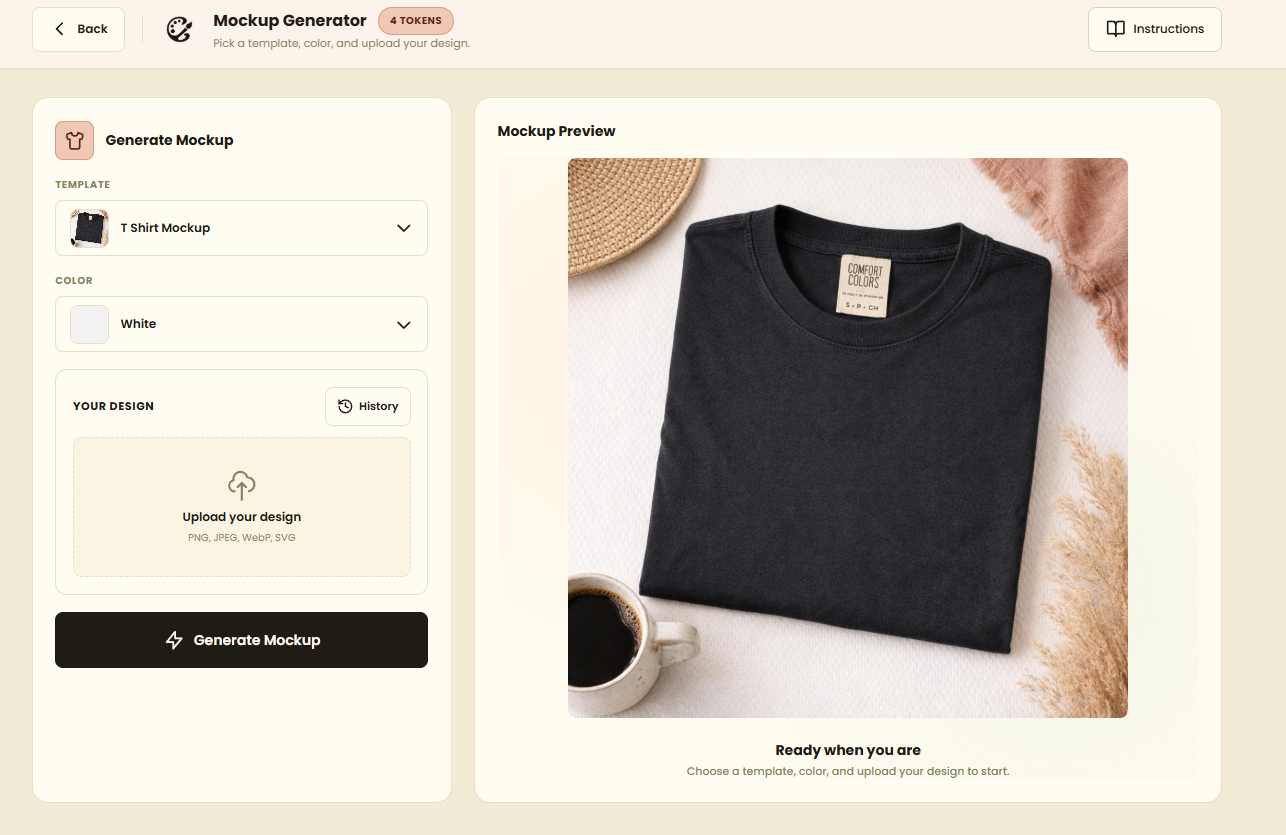
For example, you can take a summer t-shirt design and instantly place it on a purple t-shirt mockup.
This gives you listing images that are easier for buyers to understand.
Step 7: Generate Clipart
If you create clipart bundles, Krafie includes a dedicated Clipart Generator.
You can generate clipart in different styles, including:
- watercolor
- girly
- quirky
- steampunk
- sticker style
- coloring book style
- custom reference styles
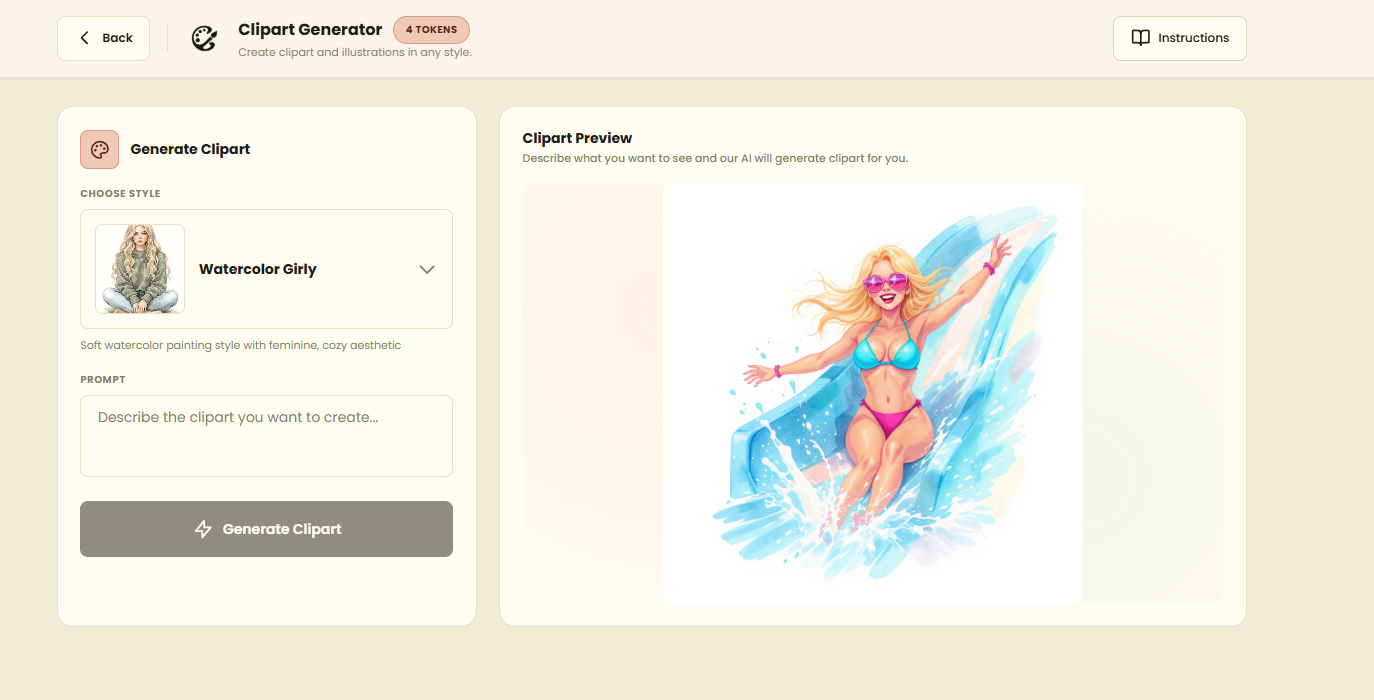
You can also upload your own reference style and tell Krafie what object or character you want generated in that style.
For example, you can upload a whimsical Christmas clipart reference and ask Krafie to generate a snowman in that same style.
This is useful if you want to create consistent clipart bundles instead of one random image at a time.
Step 8: Create Cross Stitch Patterns
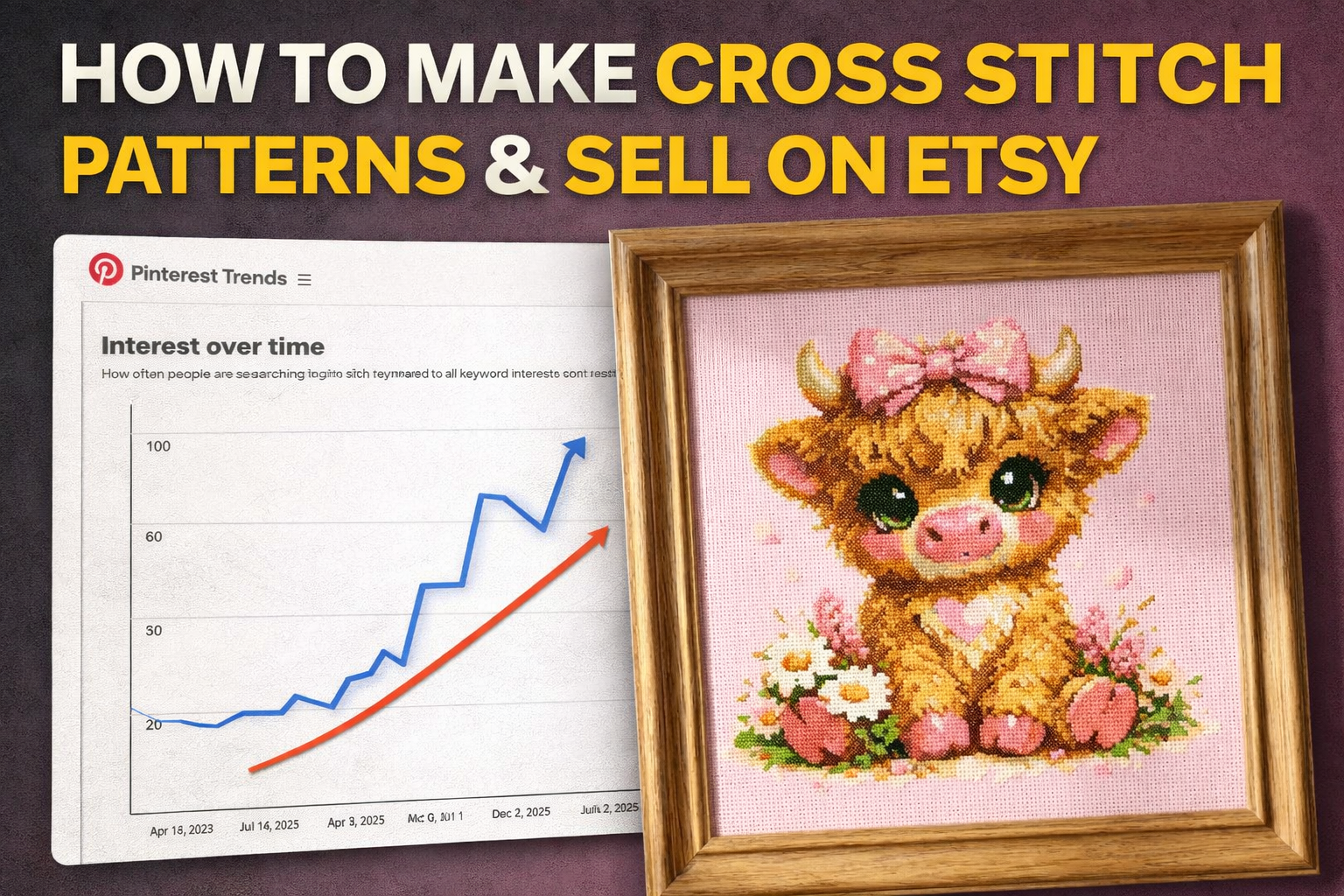
Cross stitch patterns are a popular digital product category on Etsy. For a focused start-to-finish example, read how to make cross stitch patterns with AI and sell them on Etsy.
Krafie’s Cross Stitch app lets you turn an image into a downloadable cross stitch pattern PDF.
The basic workflow is:
- Create or upload an image
- Remove the background if needed
- Choose stitch dimensions
- Select the number of colors
- Select fabric count
- Generate the pattern
- Export the finished PDF
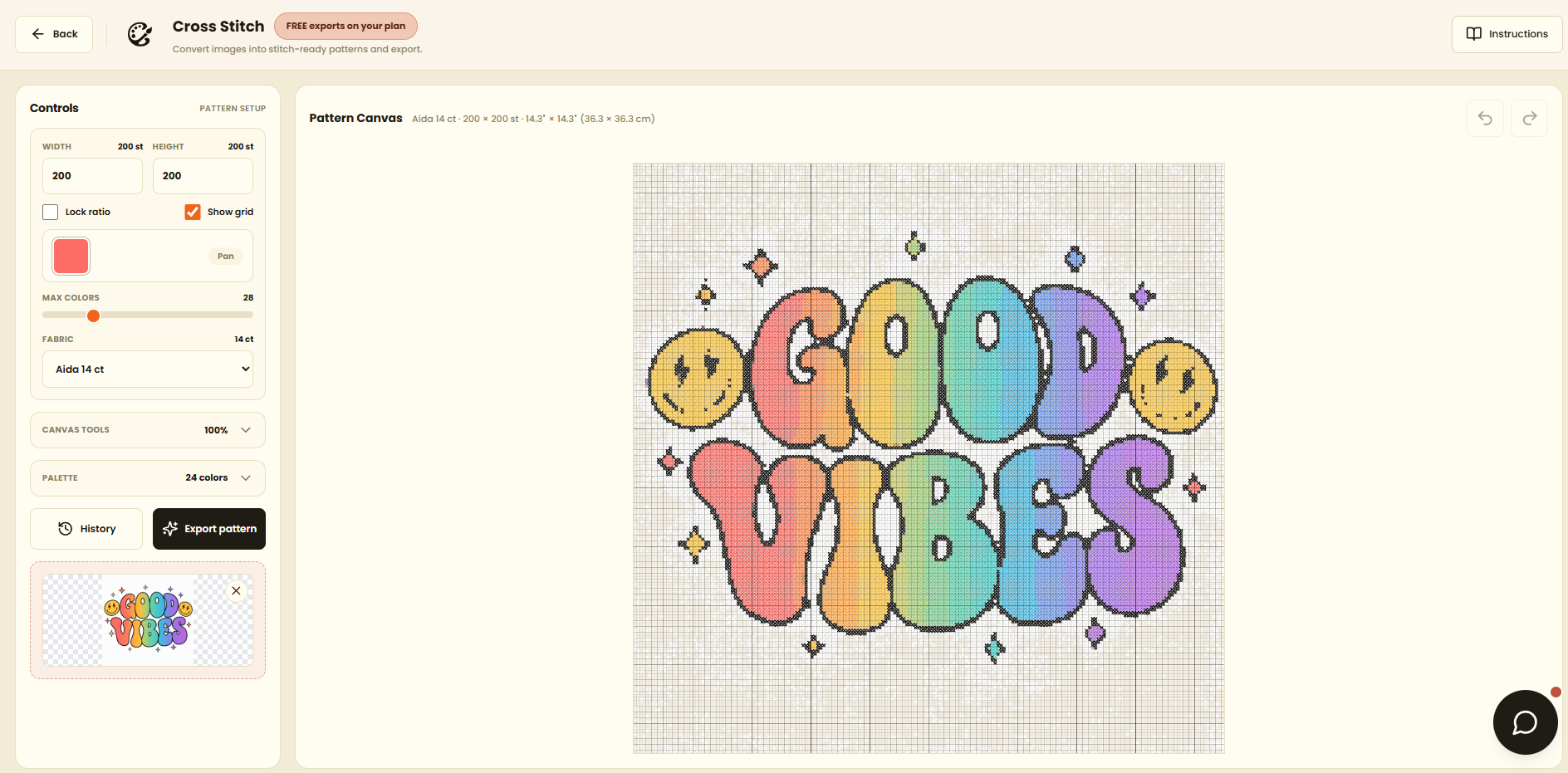
The PDF becomes a downloadable product for your shop or marketplace. It includes the pattern instructions customers need to recreate the design.
You can also export a PNG preview for your mockups and listing images.
Step 9: Generate SVG Files
Krafie also includes an SVG Studio.
This is useful for people who sell SVGs, Cricut files, laser cut files, simple vector graphics, or printable design assets.
You can either generate SVGs from prompts or convert PNG and JPEG images into SVG format.
For example, you can generate a yellow dog SVG, choose a style like line art or engraving, and then download the result.
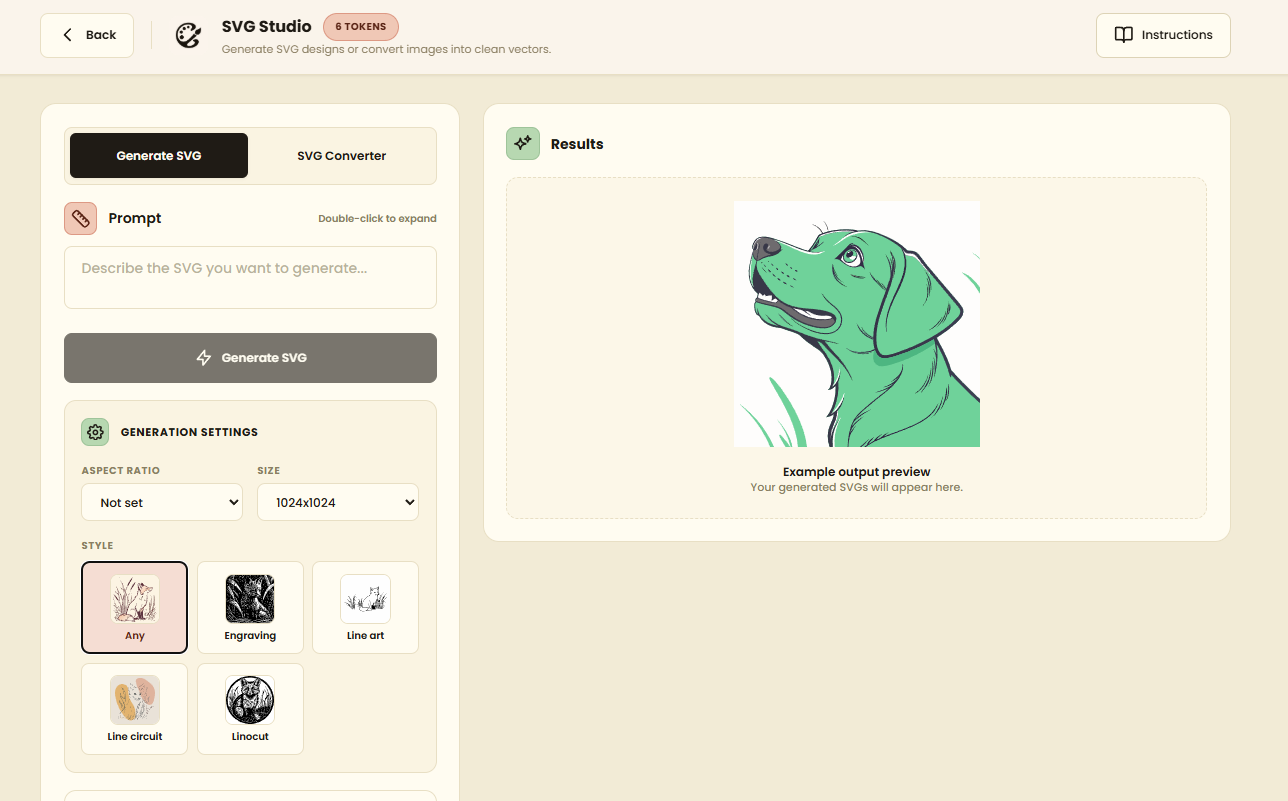
In many cases, the best workflow is to generate a strong 2D image first, then convert that image into an SVG.
Step 10: Remove Backgrounds
Background removal is one of the most common steps in digital product creation.
The Krafie Background Remover includes multiple background removal models because different images sometimes need different tools.
You can remove the background from:
- clipart
- t-shirt designs
- product images
- AI-generated assets
- mockup elements
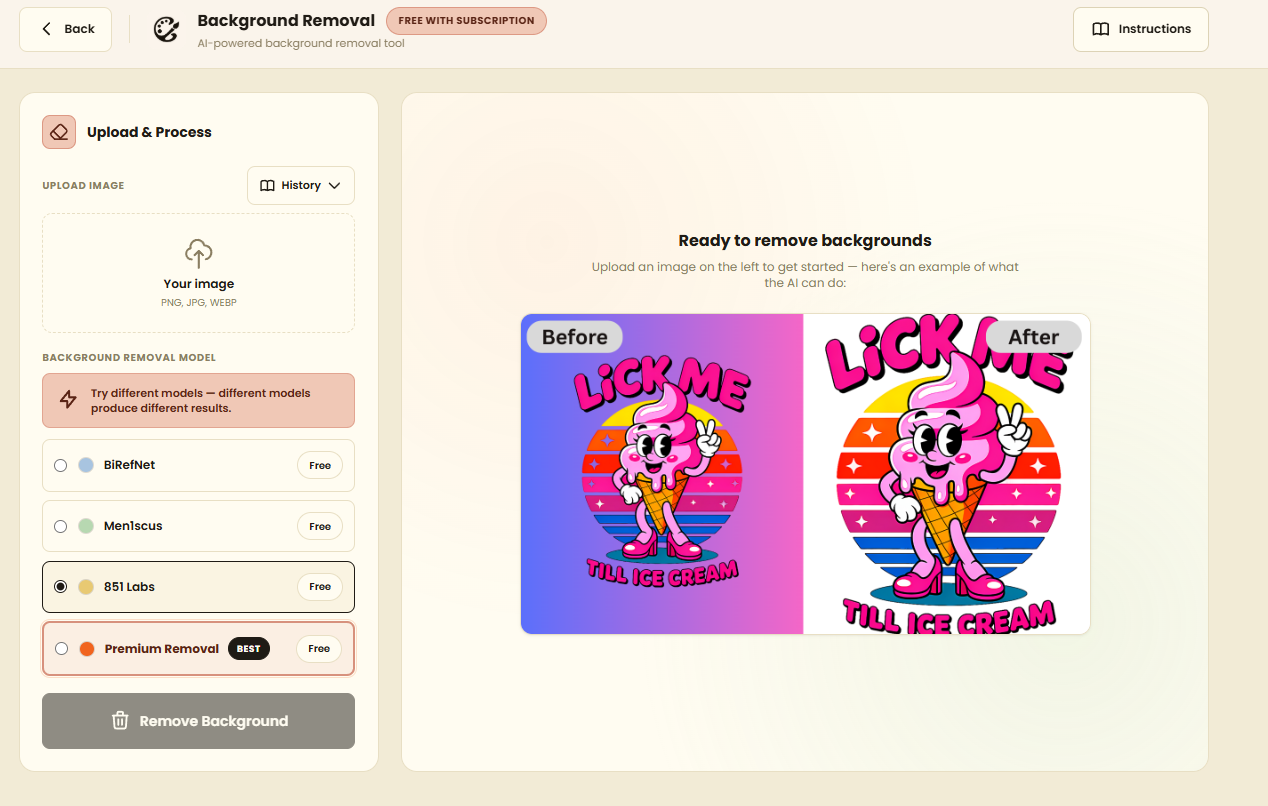
You can also refine the result manually with a brush if the first output is not perfect.
Step 11: Upscale Images for Print Quality
If you sell print-on-demand products, image quality matters.
The Krafie Image Upscaler lets you increase the resolution of your images.
This is useful when a print platform requires a higher-resolution file or when you want your design to look sharper on large products.
For most products, a 2x or 4x upscale is enough. You can go higher, but large upscales use more resources and may not always be necessary.
Step 12: Prepare Your Listing Content
When you are ready to sell, prepare clear listing content. The current Listing Optimizer uses the Etsy listing format: a title, 13 tags of up to 20 characters each, and a description opening. Review and adapt the output to your destination’s requirements.
The Krafie Listing Optimizer helps you generate:
- SEO-friendly titles
- Etsy tags
- the first sentence of your description
This is important because Etsy has limited title space, and you want your listing title to be clear, relevant, and searchable.
You can enter a keyword like “Christmas clipart” and generate title and tag ideas. You can also upload an image so the SEO output is based on the actual design you created.
Step 13: Generate AI Videos
Krafie also includes an AI Video Generator for video creation.
This is useful if you want to create:
- TikTok videos
- product promo videos
- AI avatar videos
- short-form content for digital products
- videos for TikTok Shop affiliate marketing
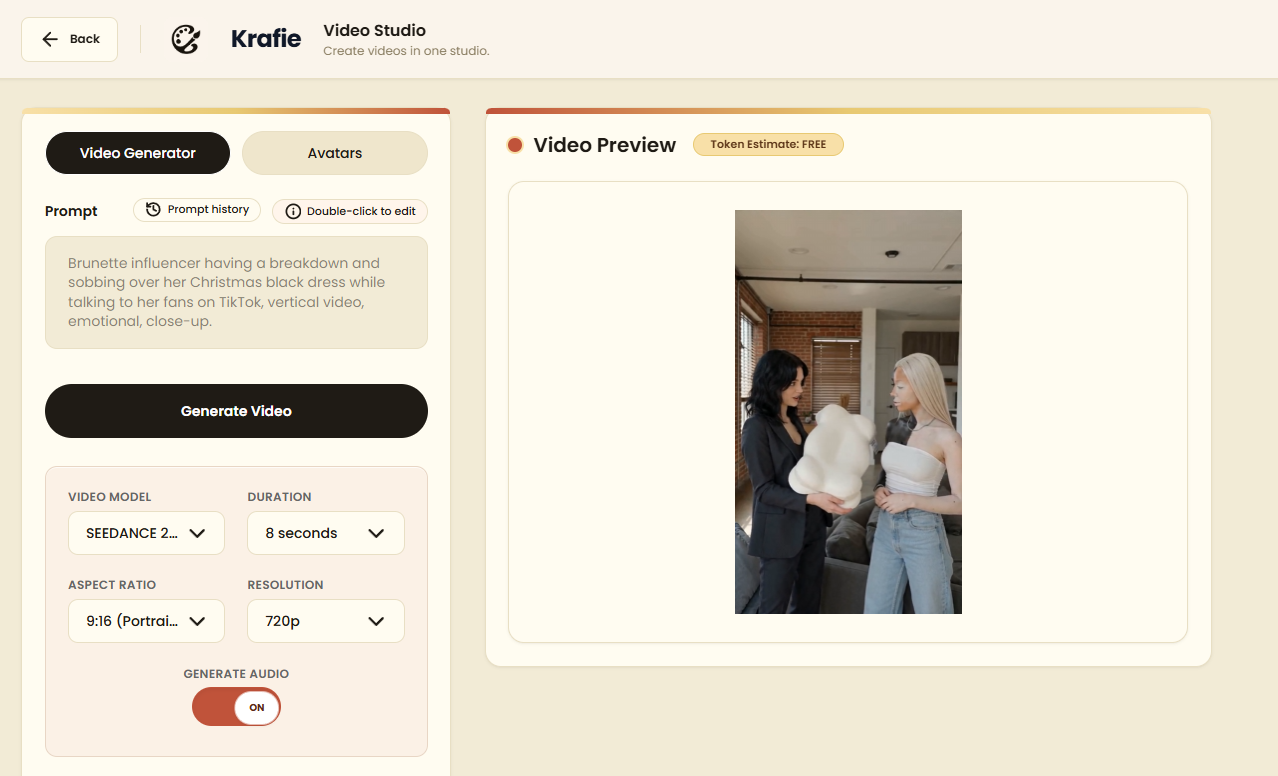
You can use major AI video models, store your AI avatars, and keep your generated videos saved in your history.
Use short-form content to show your digital products and reach potential customers through your social channels.
Step 14: Connect Krafie to Claude, Codex, or Other AI Agents
One of the most powerful features inside Krafie is the MCP connection.
MCP lets you connect Krafie to AI agents like Claude, Codex, Cursor, or other tools that support MCP-style workflows.
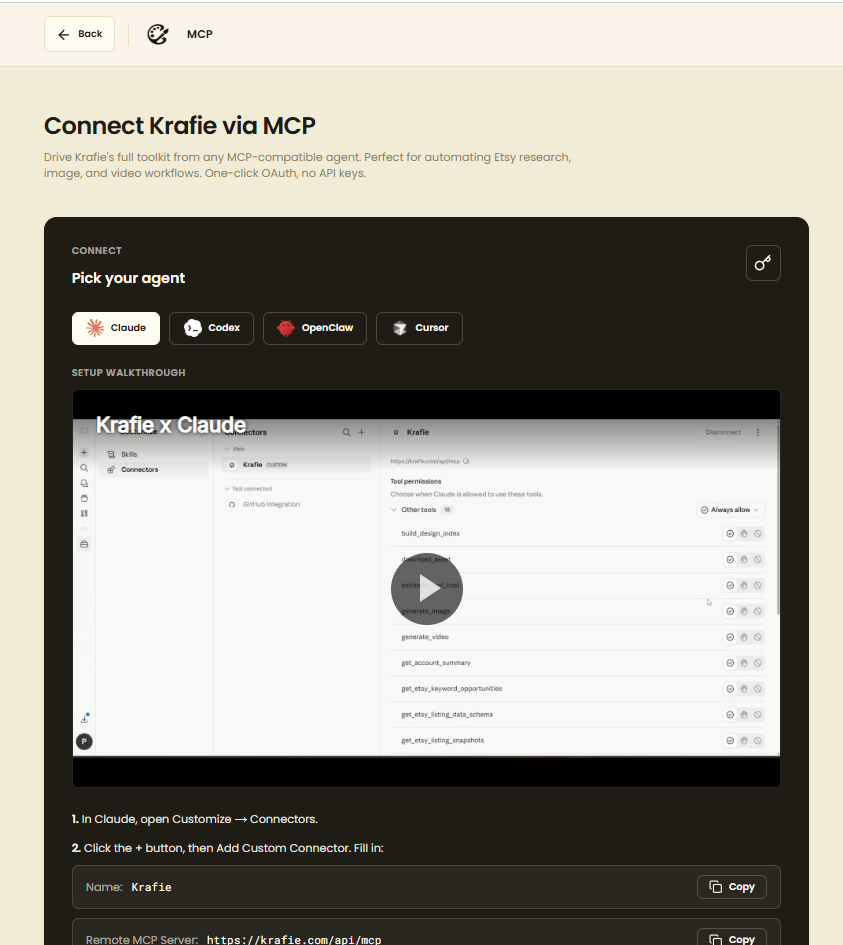
In simple terms, MCP is the bridge between your AI assistant and Krafie.
Once connected, you can ask an AI agent to:
- research Etsy listings
- generate images
- remove backgrounds
- upscale images
- create new product ideas
- schedule recurring generation tasks
For example, you could connect Krafie to Claude and ask:
Find a new t-shirt design with at least 20 estimated monthly sales and generate something similar but original using Nano Banana.
That turns Krafie from a tool you use manually into a system that can be automated. Follow the complete Krafie and Claude MCP setup guide, or see what happened when I used Claude Cowork to build a nearly automated digital product shop.
How to Turn Krafie Into a Digital Product Workflow
Here is a simple workflow you can use if you want to generate and sell digital products with Krafie:
- Use Product Research to find a product category with demand
- Crop or save a reference image from a winning listing
- Use the AI Image Generator to create a new original version
- Generate variations so you have multiple product options
- Use the Background Remover if needed
- Use the Image Upscaler for better quality
- Create a mockup or preview image with the Mockup Generator
- Use the Listing Optimizer for title and tags
- Export your files
- Publish through your chosen shop or marketplace after checking its requirements
This same workflow can be adapted for t-shirt designs, clipart, wall art, cross stitch patterns, SVGs, and more.
Best Digital Products to Create With Krafie
If you are not sure what to make first, here are some product types that fit well with Krafie:
- clipart bundles
- t-shirt PNG designs
- wall art prints
- cross stitch pattern PDFs
- SVG bundles
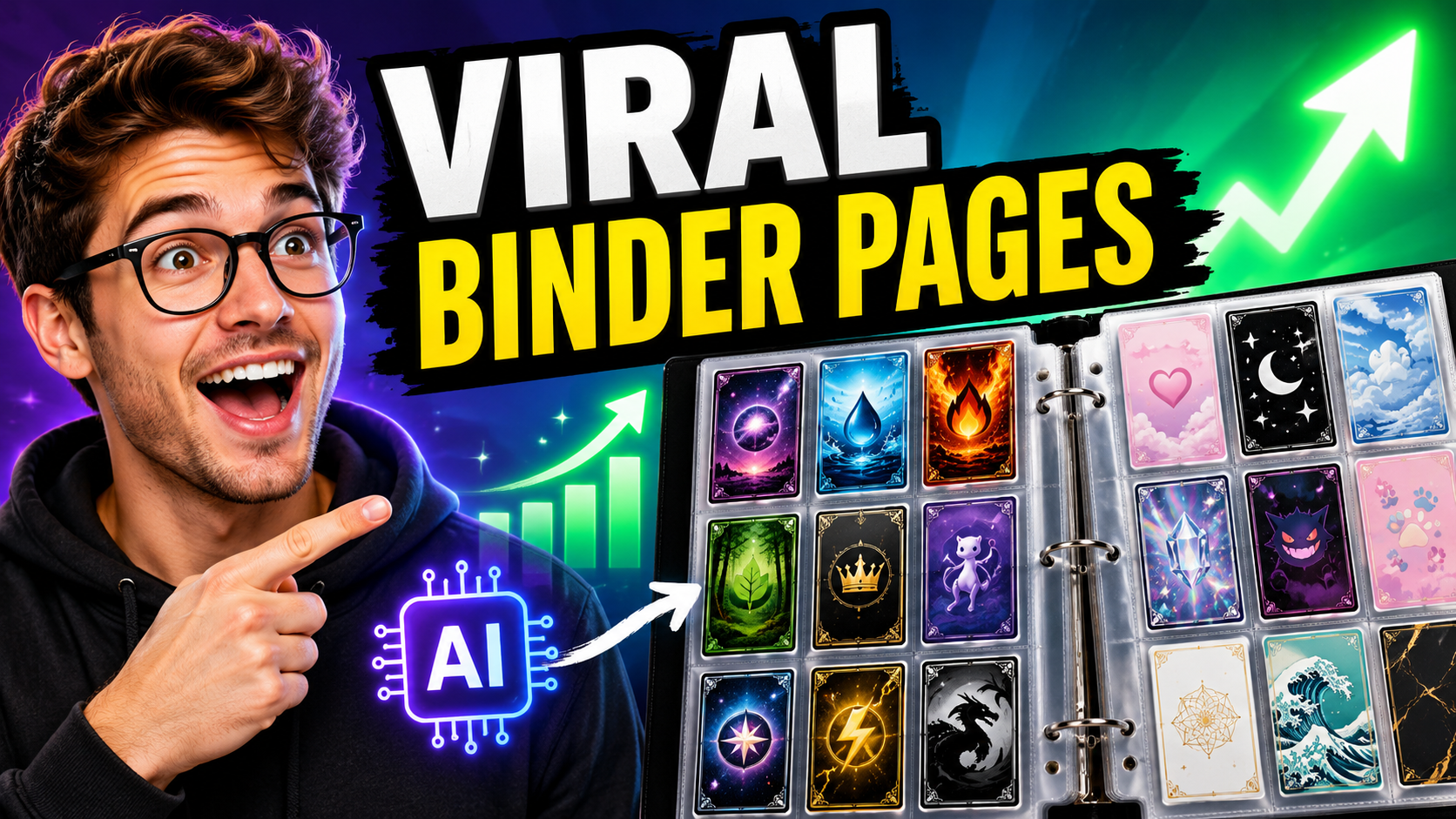
- printable binder pages
- mockup images
- seasonal digital downloads
- print-on-demand graphics
The best approach is to start with the Product Research app, find what is already getting traction, and then use the creation tools to build your own version.
Related Krafie Guides
Use these focused tutorials when you are ready to turn one part of the workflow into a repeatable product or automation system.

Final Thoughts
Krafie is built for people who want to create and sell digital products without paying for a dozen different subscriptions.
You can generate and edit artwork, remove backgrounds, upscale images, create mockups and clipart, make cross stitch patterns and SVGs, and build videos in one creative studio. Product Research and Listing Optimizer help you prepare for selling through external channels.
If you sell digital products, this can save a lot of time and make your workflow much easier.
The biggest advantage is not just that Krafie has a lot of tools. It is that the tools are connected to one workflow.
Research what is selling, create your own version, optimize it, and list it.
That is the whole digital product game. Start creating with Krafie and keep the complete workflow in one place.