

How to Connect Krafie to Claude and Automate Product Research, Image Generation, and More
If you want to turn Claude into an actual working assistant instead of just a chatbot, connecting it to Krafie is one of the most powerful things you can do.
Once the connection is set up, Claude can use Krafie to explore product ideas, generate images, edit images, remove backgrounds, and help you build repeatable creation workflows for digital products. Instead of logging into different tools manually and doing everything step by step, you can plug Claude into the system and let it start handling the repetitive work for you.
You’re connecting your AI to a creative studio that brings image generation, video generation, mockup tools, product research, and your saved history into one workspace. Product Research currently uses Etsy listing data.
What Krafie Actually Does
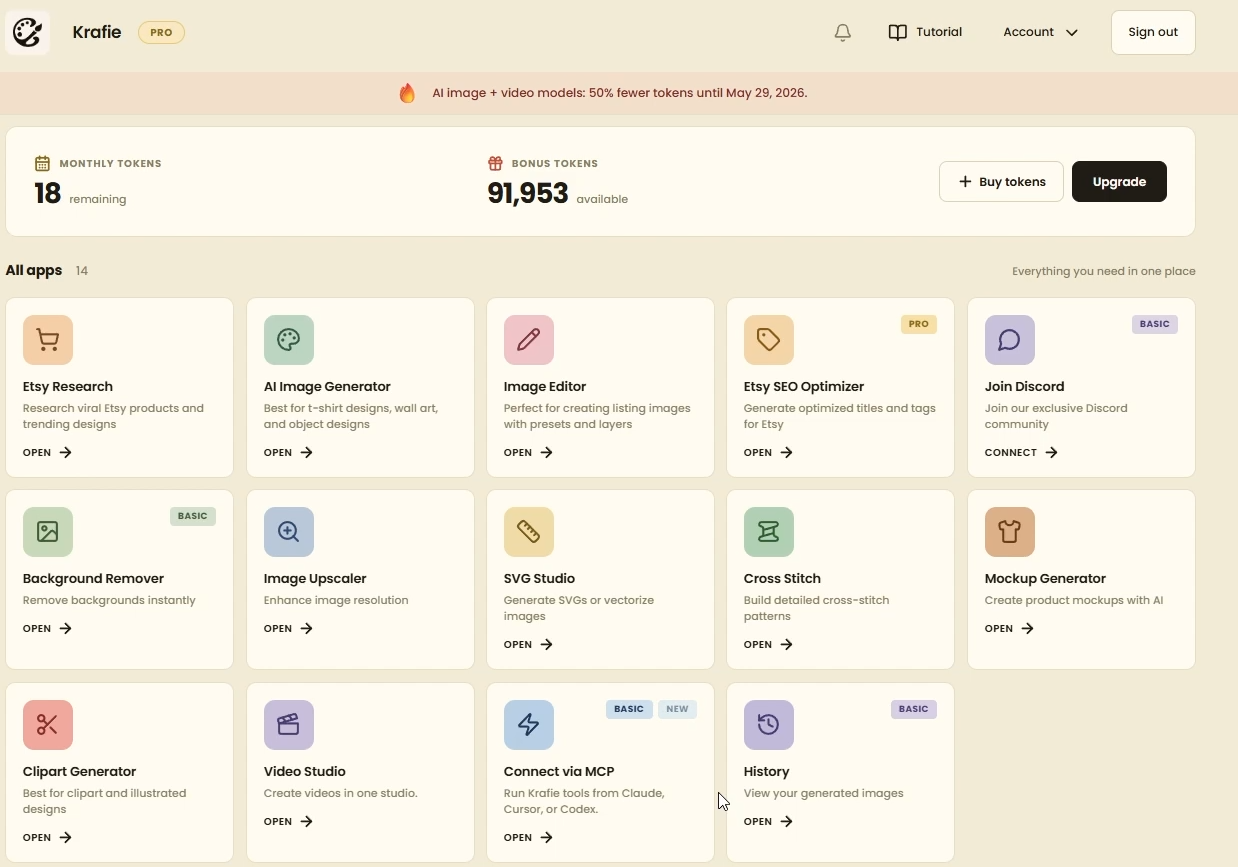
Krafie is an all-in-one AI creative studio for digital products. Create and refine assets, explore product ideas, and prepare files for your shop or marketplace. It includes:
- Product Research tools
- AI image generation
- AI video generation
- Mockup generation
- Image editing tools
- Background removal
- Saved history of assets
The reason this matters is simple: if Claude can access Krafie, it can use all of those tools as part of a single automated workflow.
Why Connect Claude to Krafie?
Normally, if you want to create digital products, you have to do everything manually:
- Research what is selling on Etsy
- Come up with a concept
- Generate the image
- Edit it if needed
- Remove the background
- Download the final version
- Repeat the process over and over again
Once Claude is connected to Krafie, that workflow can become much more automated. Claude can send commands, use Krafie’s tools, and help you create assets much faster than doing everything by hand.
This is especially useful if you sell:
- clipart
- wall art
- t-shirt designs
- print-on-demand graphics
- seasonal Etsy digital products
Step 1: Download Claude Cowork
Before you connect anything, you need Claude set up properly.
The easiest way to do this is with the Claude desktop app, because Cowork mode is designed for more advanced automation. You can still use Claude in the browser, but the desktop version is the better setup if you want to build full workflows and scheduled tasks.
You will also need a Claude subscription if you want to use Cowork features.
Step 2: Open the Krafie MCP Connection Page
Inside Krafie, go to the section that says Connect via MCP.
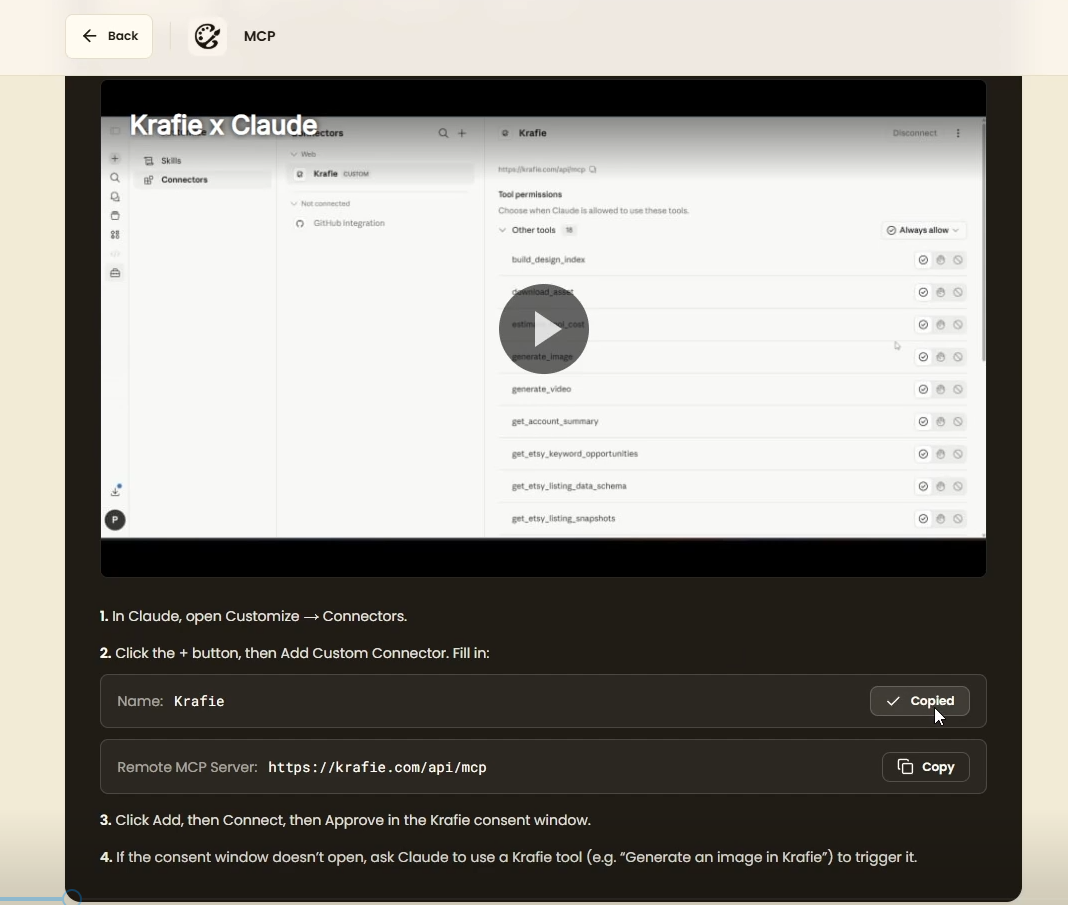
MCP is basically the bridge between Krafie and an AI model like Claude. It allows the two systems to communicate with each other, exchange instructions, and use tools across platforms.
Think of it like this:
Claude is the brain giving commands, and Krafie is the toolset doing the work.
Step 3: Add Krafie as a Custom Connector in Claude
Now go into Claude and do the following:
- Open Claude
- Go to Chat
- Click Customize
- Click Connectors
- Click Add Connector
- Click Add Custom Connector
Once you do that, Claude will ask for two things:
- Name — you can simply use Krafie
- MCP server URL — copy this directly from the Krafie MCP connection page
Paste both in and click Add.
Step 4: Authenticate the Connection
After adding the connector, you still need to authenticate it.
Sometimes Claude shows an authentication button right away. Sometimes it does not. If the button doesn’t show up, there’s an easy workaround:
Open a new chat in Claude and ask it to do something simple in Krafie, like:
“Generate an image of a cat in Krafie.”
That request should trigger the authentication process. Claude will prompt you to connect, and once it does, just click through the approval screen.
After that, the connection is live.
Step 5: Set Permissions
Once Krafie is connected, Claude lets you control how much freedom it has.

You can usually choose whether Claude:
- always asks for permission
- or acts without asking
If you want true automation, the easiest option is setting most permissions to always allow.
That way Claude can keep working without waiting for you every time it wants to take an action.
That said, there’s one smart exception: if you’re worried about Claude burning through tokens on expensive tasks like video generation, you may want those specific actions set to ask for permission first.
Step 6: Test the Connection
The fastest way to confirm everything works is to give Claude a tiny test task.
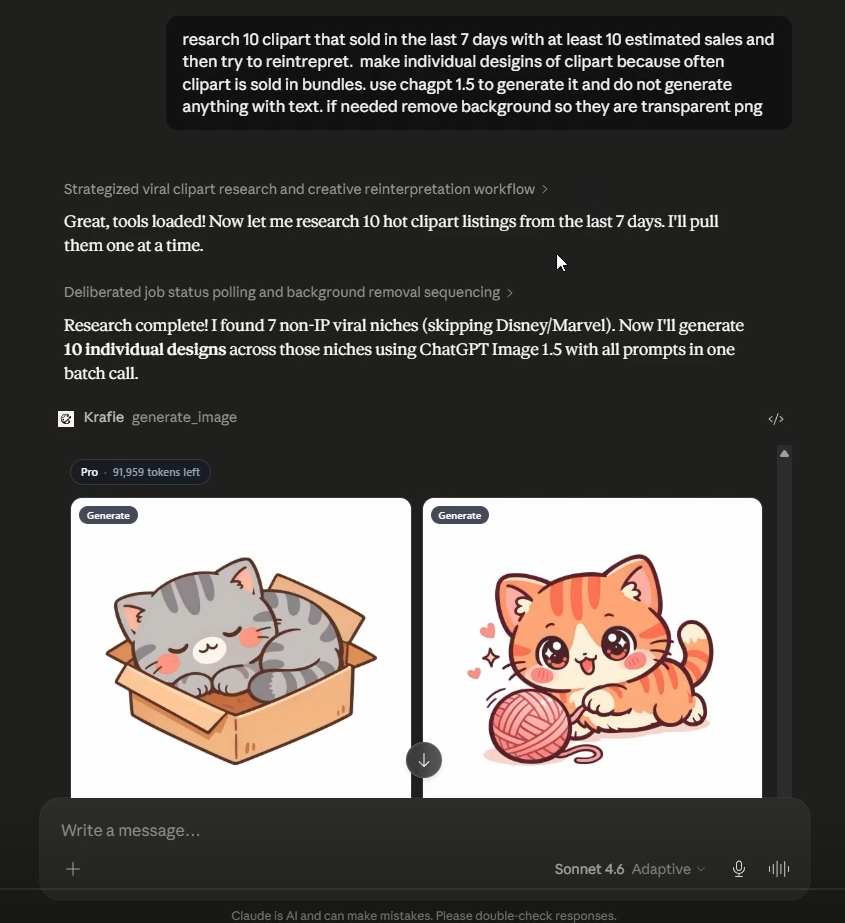
For example, ask it to generate a simple cat image in Krafie.
If everything is connected correctly, Claude should:
- send the request to Krafie
- generate the image
- return the result back to you
From there, you can test extra actions too.
For example, after generating the image, you can ask Claude to:
- reinterpret it
- edit it
- upscale it
- remove the background
Once all of that works, you know the connection is solid.
What Happens to Your Files?
One of the best parts of using Krafie in this setup is that your generated assets are saved in your history.
So if you close the Claude chat, lose the thread, or just want to come back later, your images are still there inside Krafie. You can download them from the history tab without relying on the original chat conversation.
That makes the workflow much safer and more practical for real use.
Practical Workflow Example: Etsy T-Shirt Designs
Let’s say you sell AI t-shirt designs on Etsy.
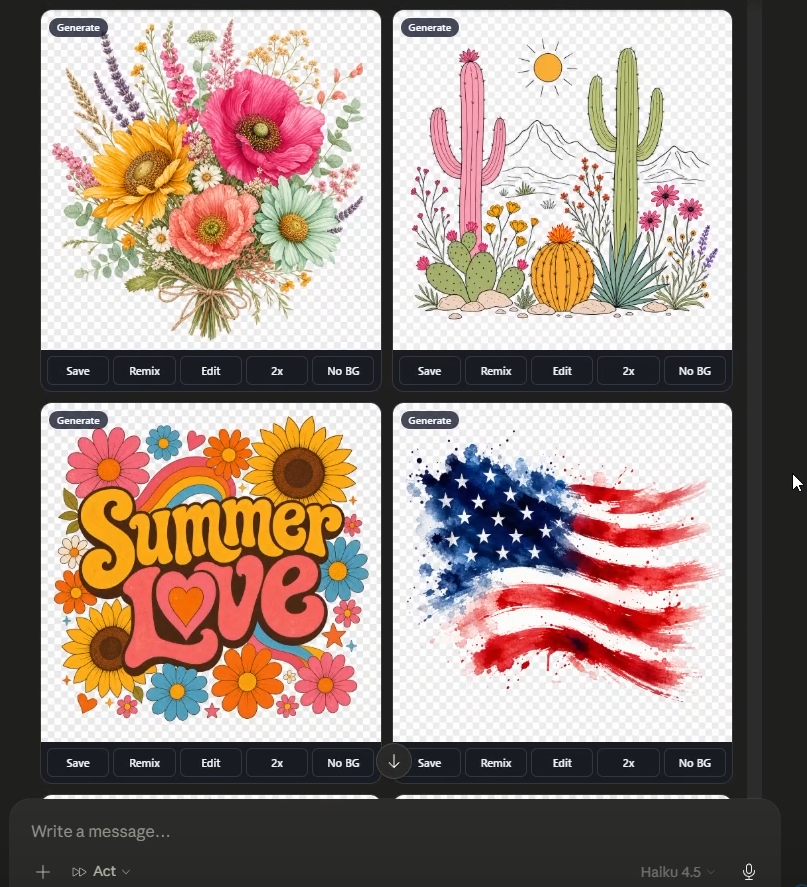
Once Claude is connected to Krafie, you can give it a command like:
Find ten colorful summer or Fourth of July style t-shirt designs with at least five estimated monthly sales, create new versions with a fresh twist, and remove the background if needed.
Then Claude can use Krafie Product Research, based on Etsy listing data, to explore product ideas and generate new images informed by observed product signals.
This is much better than blindly generating art with no market direction.
Practical Workflow Example: Wall Art
The same logic works for wall art.
You can tell Claude to find popular bathroom humor wall art, whimsical animal prints, or other categories that are already getting traction on Etsy, then generate new designs based on those patterns.
You can also give extra instructions like:
- make it a full wall art aspect ratio
- avoid mockup-style compositions
- fill the whole page with the design
- create only the art, not the frame or staged room photo
That matters because better prompts = better outputs.
Scheduled Automation
One of the coolest parts of using Claude Cowork is that you can schedule tasks.
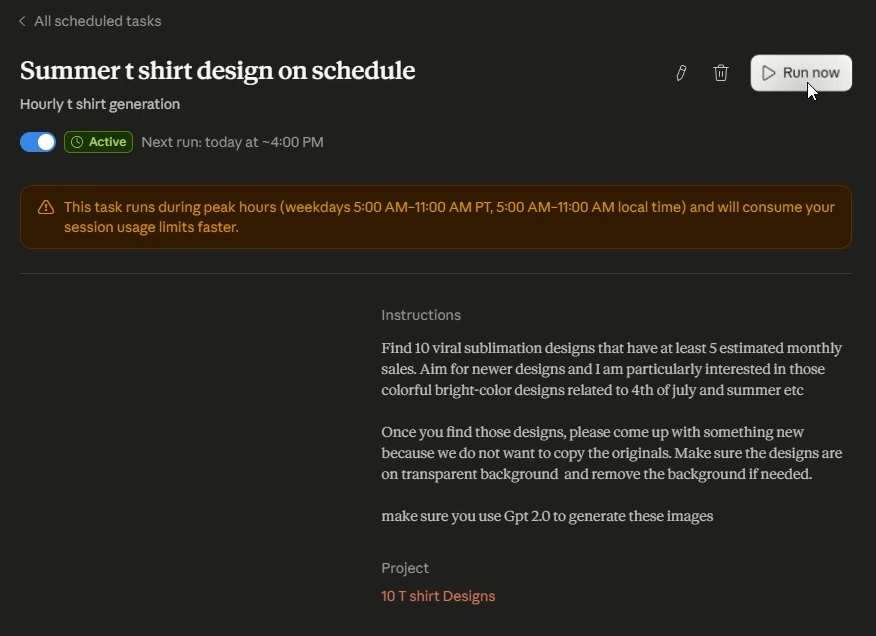
So instead of asking Claude manually every time, you can create a recurring workflow like:
- generate summer t-shirt designs every hour
- research new wall art ideas daily
- create fresh clipart based on recent Etsy sales patterns
This is where things start feeling less like “AI assistant” and more like “automation system.”
That said, you still want to be careful. If you ask Krafie to generate huge batches constantly, you can spend a lot of money quickly, and Claude can also run into usage limits.
How to Get Better Results
The first prompt is rarely the best prompt.
One of the smartest ways to improve your workflow is to treat Claude like a collaborator. If it gives you results that are close but not perfect, tell it exactly what went wrong.
For example:
- “This looks like a mockup, not wall art.”
- “I want transparent background, not background removal after generation.”
- “The design should take the whole page.”
- “This looks too much like a pattern instead of a t-shirt graphic.”
Then ask Claude to rewrite the prompt for future runs based on that feedback.
That’s where the workflow gets better over time.
Claude vs Codex
Claude works very well for this, but it is also expensive.
If you use stronger Claude models like Sonnet or Opus, you can burn through usage quickly. Even Haiku, the lighter model, can still get costly when you run large workflows repeatedly.
That’s why another option mentioned in the workflow is Codex, which also supports MCP-style connections and can connect to Krafie too.
The advantage there is potentially lower cost depending on how you use it.
But if your goal is simply to get started and build a functioning automation system fast, Claude is still one of the easiest places to begin.
Final Thoughts
Connecting Krafie to Claude is not complicated, but the impact is huge.
Once the connection is set up, you can move from manually clicking through every step of product creation to running guided AI workflows that:
- research Etsy
- generate images
- edit them
- remove backgrounds
- save outputs in your history
- repeat on a schedule
That is a serious upgrade if you sell digital products.
And if you’re already using Krafie as your all-in-one tool, plugging it into Claude is one of the fastest ways to make the platform even more powerful.